
How to Sign In to Your GitHub Account and Make It Yours
October 20, 2026
BuyGitHub Help· Customer support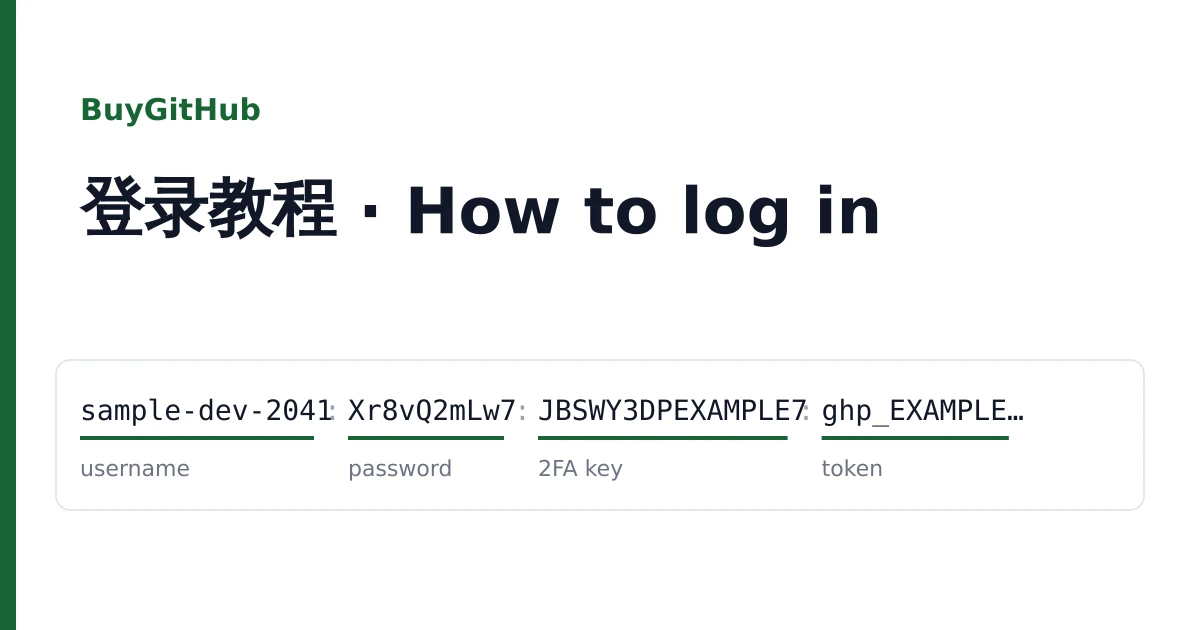
Each GitHub account you bought is a single line on your order page, which you can copy line by line or download as a text file; the delivery email repeats it. Whoever holds the line holds the account, so keep the file private.
GitHub accounts in this shop almost always have two-factor authentication on. That makes the second step of the sign-in the part to understand, and this guide is built around it.
What is in your line
Here are the shapes you will meet, with made-up values. Fields are split by colons on most listings and by a double bar on one.
sample-dev-2041:Xr8vQ2mLw7:JBSWY3DPEXAMPLE7:ghp_EXAMPLEexample0000:sample.dev2041@example.comsample.dev2041@example.com:Xr8vQ2mLw7:JBSWY3DPEXAMPLE7sample-dev-2041:Xr8vQ2mLw7:sample.dev2041@example.com:MailPw55:JBSWY3DPEXAMPLE7| Piece | How to spot it |
|---|---|
| Username | Letters, digits and hyphens, no @. Your profile is github.com/ followed by it. |
Contains @. Works in place of the username at sign-in. | |
| Password | The field after the username or email. |
| 2FA key | A run of capital letters and digits 2 to 7, often 16 or 32 long. |
| Access token | Begins with ghp_. A personal access token (classic). |
| Mailbox password | A second password, after the email, on listings with email access. |
| Recovery codes | Several short pairs like a1b2c-3d4e5, separated by commas. |
A field you cannot place, such as a short number between the key and the token, is described in the listing. If it is not, ask in a ticket rather than guessing.
Step one: username or email, and password
Go to github.com/login, enter the username or the email, then the password. Copy each one separately so the colon does not come along. Avoid more than two wrong tries in a row; GitHub slows down repeated failures.
Step two: three ways past the code screen
GitHub now asks for proof that you hold the account. Use whichever your line includes, in this order.
1. The 2FA key
Open https://checkkit.net/en/online-2fa-code-generator, paste the key and type the six digits shown into GitHub's authentication code box. The digits change every 30 seconds; if one is refused, wait for the next and try once more. A clock on your computer that is several minutes off can also make codes fail.
2. A recovery code
If the line includes recovery codes, choose the option to use a recovery code on the same screen and enter one of them. Each code works once; cross it off after use.
3. The mailbox
Some prompts, such as signing in from a new device, send a code by email instead. On listings with email access, sign in to the mailbox with the email and mailbox password and read GitHub's message there. Gmail addresses open at gmail.com; the listing names the provider for the others. On listings marked GitHub access only there is no mailbox, so rely on the key.
If your line has a token
The ghp_ token does not open the website. It stands in for the password when git talks to GitHub over HTTPS and when a program calls the API. To check that it belongs to the account, send a request to https://api.github.com/user with the header Authorization: Bearer followed by the token; the reply names the account. Once you are signed in on the website, you can see the token under Settings, Developer settings, Personal access tokens.
Take the account over
- Emails: in Settings, add an address you control, verify it, set it as primary, and remove the delivered address if you do not need it.
- Password: under Password and authentication, set a new password.
- Two-factor: on the same page, set up the authenticator app again with your own app, so the delivered key stops working, and download the new recovery codes.
- Tokens and keys: under Developer settings, create your own token with only the scopes you need and delete the delivered one. Remove SSH and GPG keys you did not add.
- Sessions: under Sessions, revoke anything you do not recognise.
GitHub's Terms of Service set the rules for account use, and GitHub can ask any account to verify or suspend it. Use the account within those terms; we do not advise on getting around them.
When it does not work, and how to report it
"Incorrect username or password"
Recopy the field alone, and try the email in place of the username or the other way round.
Every code from the key is refused
Check your computer's clock, then try a recovery code or the mailbox if your line has them.
"Your account has been suspended"
Screenshot the page before doing anything else.
Reporting
Open a ticket from your order page inside the warranty window on the listing. Include the username or email of the line, what you tried, and the screenshot. Signing in never voids the warranty; suspensions after bulk or automated activity, spam or abuse of free plans and trials are not covered. The catalogue and the home page explain the differences between listings for your next order.